
Dark Website On A Raspberry Pi
I hosted a dark website on a raspberry pi with tor and nginx; and here's how
I hosted a dark website on a raspberry pi with tor and nginx; and here's how
-- Wifi Capable Raspberry Pi
-- SD Card for your raspberry pi
-- USB SD card reader
-- USB Keyboard
--- USB Mouse
-- HDMI Equipped Monitor
-- A computer (NOT YOUR PI)
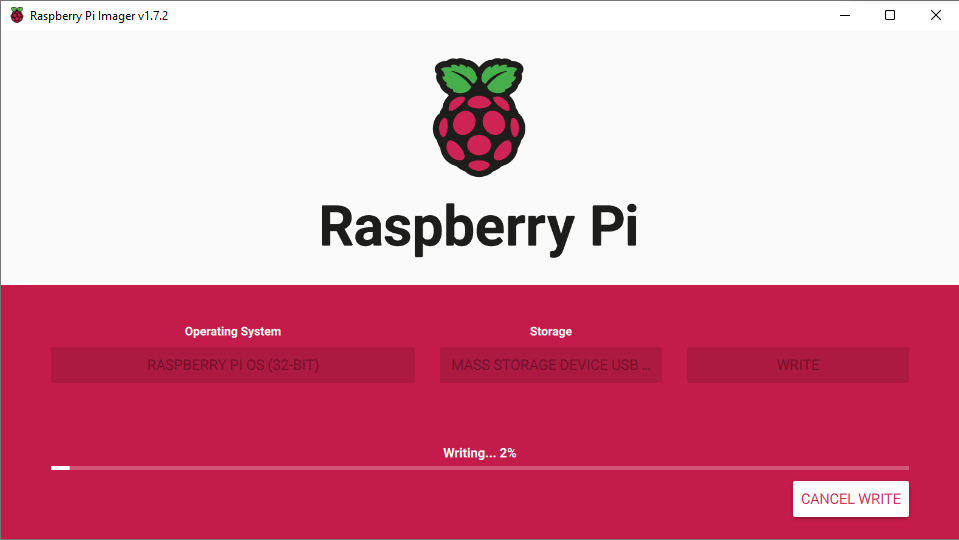
First thing's first, you'll need a linux distro on your raspberry pi, here we'll be using raspbian, as it was designed to run on the pi. This can be done by installing the imager for your system here. Once it's installed, plug in your sd card to your computer using your usb adapter. Then select your os as "RASPBERRY PI OS (32-BIT)" and then select your sd card from the "CHOOSE STORAGE" section. Once completed, click write, and give the os to get flashed onto the card.

Once the sd card has been flashed with raspbian, insert the sd card into your pi, and power it up. This is also where you should connect your monitor, keyboard, and mouse. You should reach a setup screen after a few minues, fill out all of the prompts, including wifi, username, and password. If prompted, make sure to update the software. Once you're in the raspberry pi desktop, click on the terminal icon in the top bar, and wait for the terminal to open. Once it's open, type "sudo apt update" to update your system. This may take a while. As soon as it's finished, type "sudo apt install tor nginx -y" to install tor and nginx on the pi.
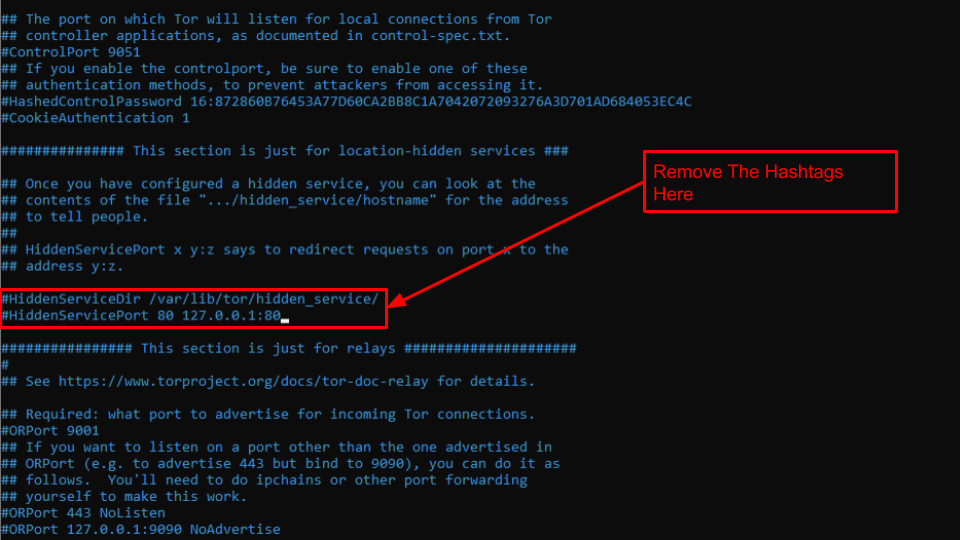
In the terminal, enter the command "sudo nano /etc/tor/torrc" to open the tor config file. Once inside, look for the two lines that begin with "#HiddenServiceDir" and "#HiddenServicePort". Once you found them, delete the "#" at the beginning of each line. Then, Press CTRL+X, and then y, and then enter to save the file.
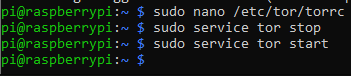
In order for the site to run with our new updated configuration, we need to restart the tor service, which can be done by running the commands "sudo service tor stop" and then "sudo service tor start" right after. Once this done, run the command "sudo service nginx start" to get nginx up and running so you have content for your webpage.

To visit your site, we're going to install tor on another server. To do this, go to torproject.org and downloading the file for your system. Then, install tor, and wait for a new window to open, and click yes on any dialogs that popup. Now, you almost get to see your site, but first you have to find out it's location. So, go back over to your raspberry pi, and run the command "sudo service tor status". Make sure the output contains the green text "active (exited)". if it's active, great, now we have to get your dark web address. To do this run the command "sudo cat /var/lib/tor/hidden_service/hostname". The output of this command should be a string of text ending in ".onion". This is your dark web address. Paste it into the tor browser to see it. It may take some time to load, but when it does, you should be able to see something similar to the image on the left (above on mobile).

In order to customize your webpage, you have to edit the index.html file, which can be done by running the command "cd var/www/html" and then "sudo rm index.nginx-debian.html". These commands will move you into the website directory and then delete the current webpage, so you can build your own. You can do this by entering the command "sudo nano index.html" and entering your html code in there. Once finished, press CTRL+X, then Y, then Enter to save it. Once done you can head back over to your website and see your changes. When I was finished, mine ended up looking like this.